Certain emitters may also output HTML files. To enable easy customization, these emitters allow you to fully rearrange the layout of the page.
In v5, the layout is defined in quartz.config.yaml. Each plugin controls its own layout position via layout.position and layout.priority fields. The top-level layout section provides two additional mechanisms:
layout.groupsdefines flex containers (liketoolbar) that group multiple components into a single row or column. See layout-components for details.layout.byPageTypecontains per-page-type overrides (content, folder, tag, 404, …):excludeplugins, clear slots withpositions, and optionally atemplateto control the page’s page frame. See Per-page-type overrides.
Each page is composed of multiple different sections which contain QuartzComponents. The following code snippet lists all of the valid sections that you can add components to:
export interface FullPageLayout {
  head: QuartzComponent // single component
  header: QuartzComponent[] // laid out horizontally
  beforeBody: QuartzComponent[] // laid out vertically
  pageBody: QuartzComponent // single component
  afterBody: QuartzComponent[] // laid out vertically
  left: QuartzComponent[] // vertical on desktop and tablet, horizontal on mobile
  right: QuartzComponent[] // vertical on desktop, horizontal on tablet and mobile
  footer: QuartzComponent[] // laid out vertically
}
These correspond to following parts of the page:
| Layout | Preview |
|---|---|
| Desktop (width > 1200px) | 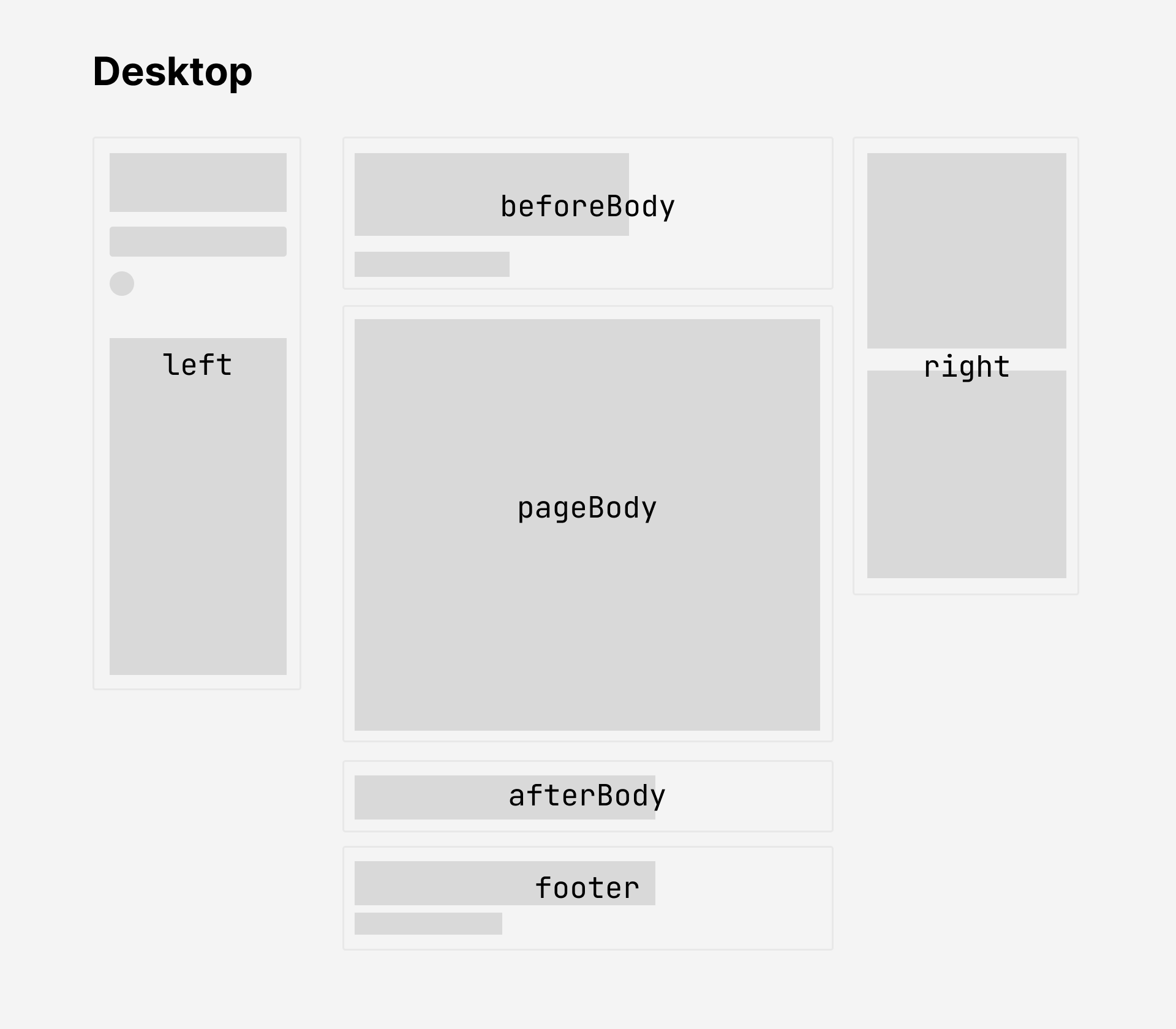 |
| Tablet (800px < width < 1200px) | 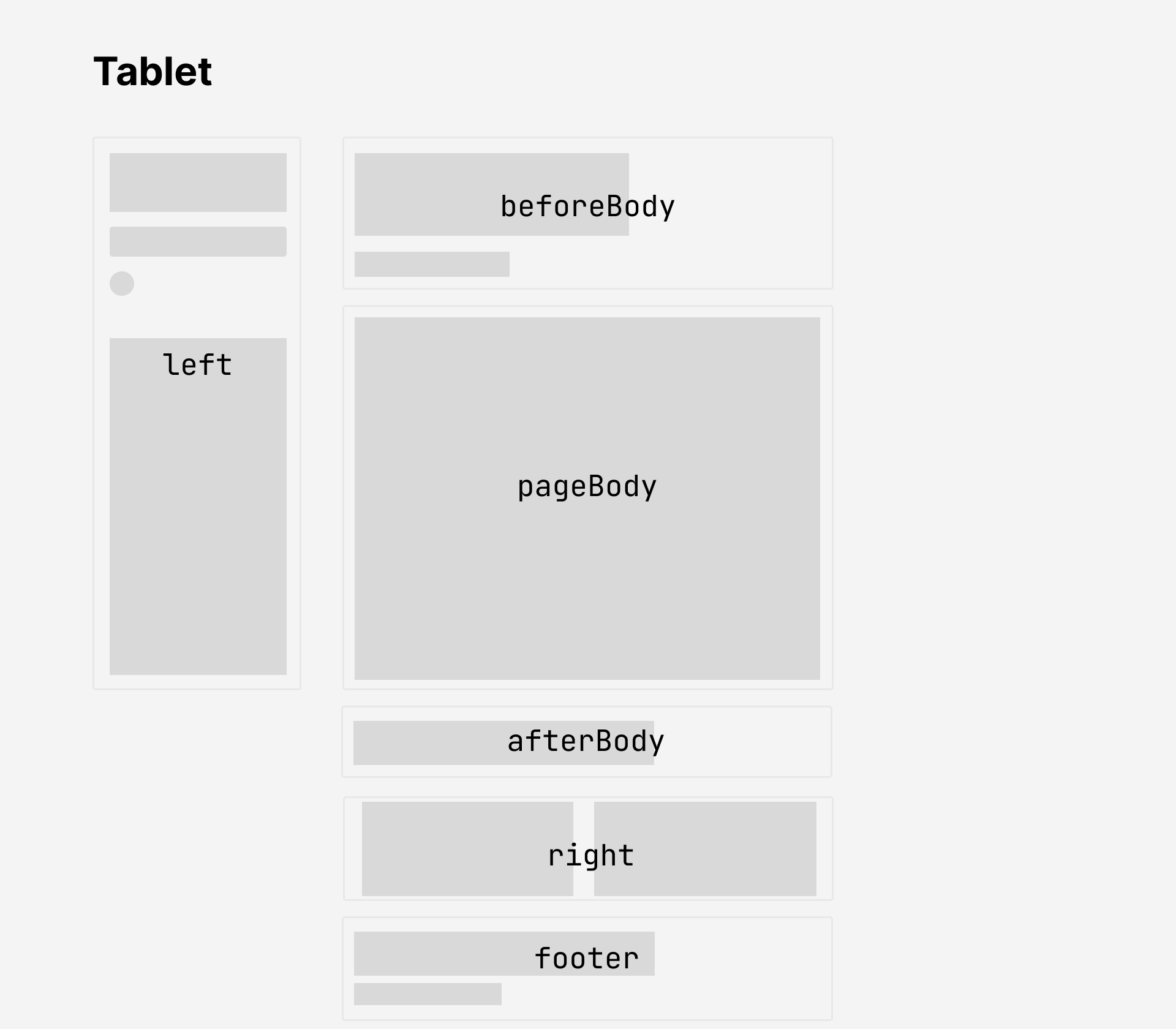 |
| Mobile (width < 800px) | 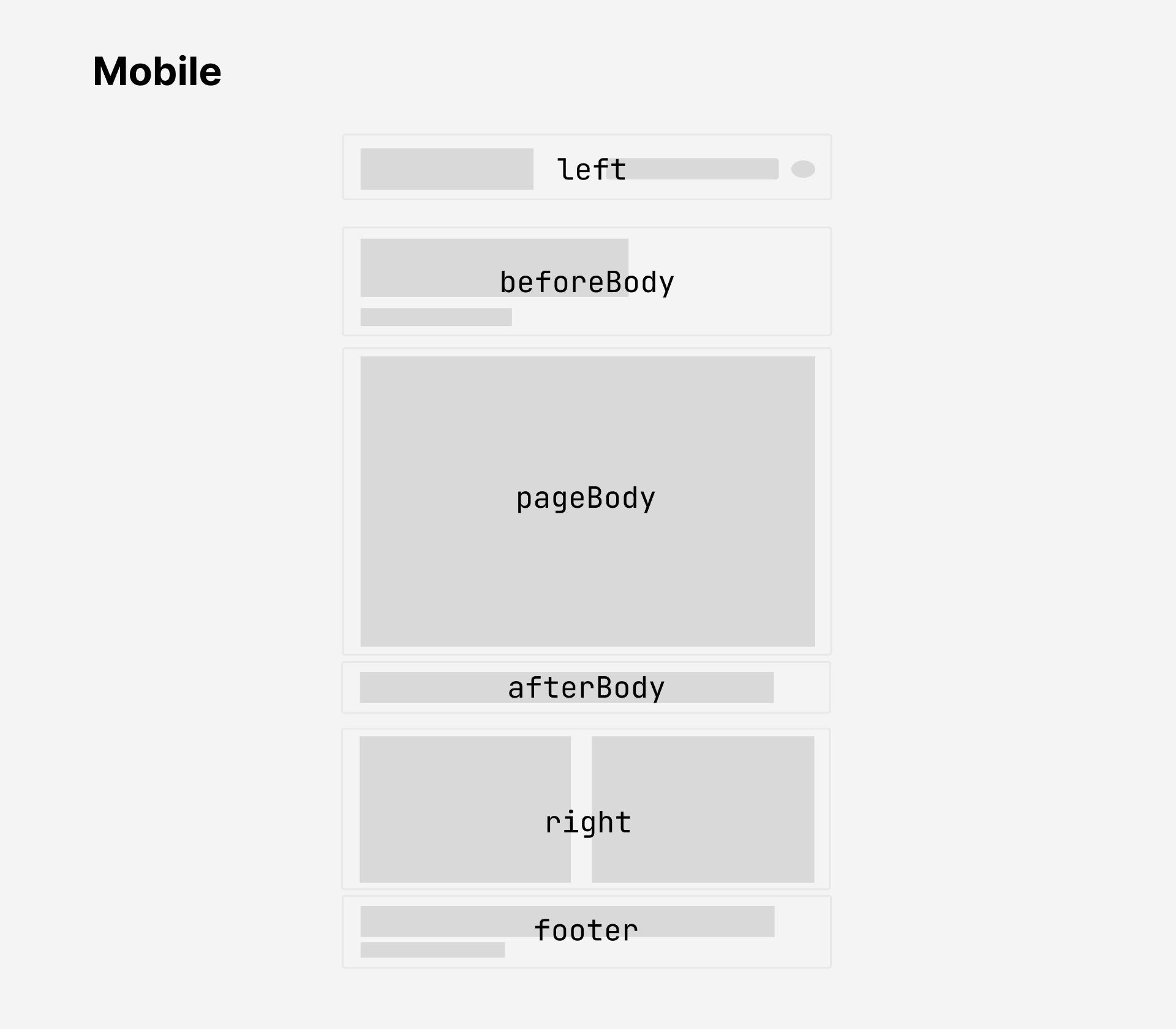 |
Note
There are two additional layout fields that are not shown in the above diagram.
headis a single component that renders the<head>tag in the HTML. This doesn’t appear visually on the page and is only is responsible for metadata about the document like the tab title, scripts, and styles.headeris a set of components that are laid out horizontally and appears before thebeforeBodysection. You can place components in the header by settinglayout.position: headerin your plugin configuration. This enables layouts similar to Quartz 3’s header bar with title, search bar, and dark mode toggle.
Layout components are configured in the layout section of quartz.config.yaml. Plugins declare their position and priority, and the layout system arranges them automatically:
plugins:
  - source: "@quartz-community/explorer"
    enabled: true
    layout:
      position: left
      priority: 50
  - source: "@quartz-community/graph"
    enabled: true
    layout:
      position: right
      priority: 10
  - source: "@quartz-community/search"
    enabled: true
    layout:
      position: left
      priority: 20
  - source: "@quartz-community/backlinks"
    enabled: true
    layout:
      position: right
      priority: 30
  - source: "@quartz-community/article-title"
    enabled: true
    layout:
      position: beforeBody
      priority: 10
  - source: "@quartz-community/content-meta"
    enabled: true
    layout:
      position: beforeBody
      priority: 20
  - source: "@quartz-community/tag-list"
    enabled: true
    layout:
      position: beforeBody
      priority: 30
  - source: "@quartz-community/darkmode"
    enabled: true
    layout:
      position: header
      priority: 10
  - source: "@quartz-community/footer"
    enabled: true
    options:
      links:
        GitHub: https://github.com/jackyzha0/quartz
        Discord Community: https://discord.gg/cRFFHYye7t
    layout:
      position: footer
      priority: 50

layout:
  groups:
    toolbar:
      direction: row
      gap: 0.5rem
  byPageType:
    content: {}
    folder:
      exclude:
        - reader-mode
      positions:
        right: []
    tag:
      exclude:
        - reader-mode
      positions:
        right: []
    "404":
      positions:
        beforeBody: []
        left: []
        right: []
Conditional Rendering
Plugins can specify a condition in their layout block to control when they appear. This uses built-in presets:
plugins:
  - source: "@quartz-community/breadcrumbs"
    enabled: true
    layout:
      position: beforeBody
      priority: 5
      condition: not-index
Available conditions:
| Condition | Effect |
|---|---|
not-index | Hidden on the root index page, shown everywhere else |
has-tags | Only shown on pages that have tags in frontmatter |
has-backlinks | Only shown on pages that another (listed) page links to |
has-toc | Only shown on pages with a table of contents (needs table-of-contents) |
Plugins can register additional conditions. An unknown condition name prints a warning at build time and the component is always shown.
Plugin layout fields
| Field | Required | Description |
|---|---|---|
position | no | header, beforeBody, afterBody, left, right or footer. Defaults to the plugin’s defaultPosition. |
priority | no | Order within the slot, lower first. Defaults to the plugin’s defaultPriority, else 50. |
display | no | all (default), mobile-only, desktop-only — see layout-components. |
condition | no | One of the conditions above. |
group | no | Name of a flex group from layout.groups. Works in every slot except footer. |
groupOptions | no | Flex item options inside the group — see layout-components. |
Because position and priority fall back to the plugin’s defaults, a layout block can contain only what you want to change, e.g. layout: { condition: has-tags }. A plugin without a layout block is placed at its default position (if it declares one).
Components with equal priority keep the order in which they appear in quartz.config.yaml; components placed by their plugin default come after explicitly configured ones.
Per-page-type overrides
layout.byPageType.<layout-key> adjusts the layout for one page type. The key is the page type’s layout name (content, folder, tag, 404, canvas, bases, …).
| Field | Description |
|---|---|
exclude | Plugins to leave out on this page type. Use the plugin name (reader-mode); the full source (@quartz-community/reader-mode, github:…/reader-mode) works too. |
positions | Clear slots: right: [] removes everything from the right sidebar. Only empty lists are supported. |
template | The page frame to use, e.g. full-width or minimal. |
sidebars | Sidebar modes for this page type (left/right: fit, scroll or static), merged over layout.sidebars. |
Slots that a page type does not change follow the defaults.
Checking your layout
Layout problems that would otherwise silently drop or misplace a component are reported as ⚠ Layout: warnings during the build — for example an unknown position (with a “did you mean” hint), an unknown display or condition, a layout block for a plugin that provides no component, a plugin listed twice, or a byPageType entry that excludes a plugin that doesn’t exist.
To see where every component ended up, run the build with --verbose:
npx quartz build --verboseThis prints, for the defaults and for each page type, every slot with its components in render order, their priority, whether the position came from your config or the plugin default, and any display, condition or group; plus the frame each page type uses and which slots that frame does not render.
Mobile layout
On screens narrower than the mobile breakpoint the left sidebar becomes a single horizontal row at the top of the page — intended for compact components such as the page title, search, darkmode toggle and the explorer menu button. Taller components placed in left (recent notes, graph, table of contents, …) get squeezed into that row. Give them display: desktop-only, or place them in right/afterBody, which stack below the content on mobile.
See layout-components for more details on conditional rendering and display options.
For advanced layout overrides using TypeScript (e.g. custom component wrappers or conditional logic), you can use the TS override in quartz.ts:
import { loadQuartzConfig, loadQuartzLayout } from "./quartz/plugins/loader/config-loader"

const config = await loadQuartzConfig()
export default config
export const layout = await loadQuartzLayout({
  defaults: {
    // override default layout for all page types
  },
  byPageType: {
    content: {
      // override layout for content pages only
    },
    folder: {
      // override layout for folder pages only
    },
  },
})
loadQuartzConfig() must be called first (as in the default quartz.ts); calling loadQuartzLayout() with overrides afterwards applies them to the layout used for rendering. For each slot the precedence is, from highest to lowest:
byPageTypeinquartz.tslayout.byPageTypechanges inquartz.config.yaml(exclude, clearedpositions)defaultsinquartz.ts- the layout built from each plugin’s
layoutblock
Component plugins are installed via npx quartz plugin add @quartz-community/<name> (or a github:org/repo source). See layout-components for built-in layout utilities (Flex, MobileOnly, DesktopOnly, etc.).
You can also checkout the guide on creating components if you’re interested in further customizing the behaviour of Quartz.
Page Frames
Page frames control the overall HTML structure of a page — specifically, how the layout slots (sidebars, header, content, footer) are arranged inside the page shell. Different page types can use different frames to produce fundamentally different layouts.
Quartz ships with three built-in frames:
| Frame | Description | Used by |
|---|---|---|
default | Three-column layout with left sidebar, center content (header, beforeBody, content, afterBody), right sidebar, and footer. This is the standard Quartz layout. | ContentPage, FolderPage, TagPage, BasesPage |
full-width | No sidebars. Single center column spanning the full width with header, content, afterBody, and footer. | — |
minimal | No sidebars, no header or beforeBody chrome. Only content and footer. | NotFoundPage (404) |
Plugins can also provide their own frames. For example, the canvas-page plugin ships a "canvas" frame that provides a fullscreen canvas with a togglable sidebar.
How frames are resolved
Each page type can declare a default frame in its plugin source code via the frame property. The resolution order is:
- YAML config override:
layout.byPageType.<name>.templateinquartz.config.yaml - Plugin-registered frame: Frames registered by plugins via the Frame Registry (loaded from the plugin’s
framesexport) - Plugin declaration: The
frameproperty set in the page type plugin’s source code - Fallback:
"default"
For example, to override canvas pages to use the minimal frame:
layout:
  byPageType:
    canvas:
      template: minimal
Custom frames
There are two ways to provide custom frames:
1. Plugin-provided frames (recommended for reusable frames):
Plugins can ship their own frames by declaring them in package.json and exporting them from a ./frames subpath. See the plugin guide for details. When a plugin with frames is installed, its frames are automatically registered in the Frame Registry and available by name.
2. Core frames (for project-specific frames):
You can also create frames directly in quartz/components/frames/ by implementing the PageFrame interface and registering the frame in quartz/components/frames/index.ts. See the architecture overview for the full PageFrame interface.
Frames are applied as a data-frame attribute on the .page element, which you can target in CSS:
.page[data-frame="my-frame"] > #quartz-body {
  /* custom grid layout */
}
Frame CSS should be scoped with [data-frame="name"] selectors to avoid conflicts with other frames.
Sidebar modes
layout.sidebars sets how each sidebar handles content taller than the screen:
layout:
  sidebars:
    left: static
right: fitfit(default): the sidebar stays in view and is exactly one screen tall. Its components shrink and scroll themselves (the explorer and table of contents get their own scroll area).scroll: the sidebar stays in view, and scrolls itself when its components are taller than the screen. Components take their natural height, so nothing can end up out of reach.static: the sidebar scrolls away with the page, like most documentation sites. The docs template uses this for both sidebars.
The modes apply where a sidebar is a column: the left sidebar above mobile width, the right sidebar on desktop. A page type can override them with byPageType.<type>.sidebars, merged over layout.sidebars.
Layout breakpoints
Quartz has different layouts depending on the width the screen viewing the website.
The breakpoints for layouts can be configured in variables.scss.
mobile: screen width below this size will use mobile layout.desktop: screen width above this size will use desktop layout.- Screen width between
mobileanddesktopwidth will use the tablet layout.
$breakpoints: (
  mobile: 800px,
  desktop: 1200px,
);
Style
Most meaningful style changes like colour scheme and font can be done simply through the general configuration options. However, if you’d like to make more involved style changes, you can do this by writing your own styles. Quartz uses Sass for styling.
You can see the base style sheet in quartz/styles/base.scss and write your own in quartz/styles/custom.scss.
Note
Some components may provide their own styling as well! Community plugins bundle their own styles. If you’d like to customize styling for a specific component, double check the component definition to see how its styles are defined. See also customizing components.